Triage and Focus · Workshop version
The Reckoning: Triage, Focus, and Ending Work in the Age of Infinite Backlogs
The scarce skill is deciding what gets to count as work.
Working along at your table? The workshop page walks you through the three steps with the AI chat you already use: it writes each prompt, you paste the answer back, and it keeps the list.
When you can spin up an entire project — plan, epics, a tree of subtasks — from a single prompt, you may end up (as I did) with 179 tasks created in less than three minutes, of which, five months later, only 36 had ever been touched.
Work stops being scarce, and what grows in its place is a forest of untended and overgrown projects. You cannot decide your way out one item at a time.
When creating work is free, the scarce skill is deciding what gets to count as work at all. An infinite list of ideas is an asset; an infinite list of obligations is a crushing burden. And generated at scale, they all look alike.
The reckoning is where you decide what survives on the project plan.
This is a working session, not a talk. We'll run the whole cycle more than once on shared examples, then you run it yourself, on your own board, with the AI assistant you already use. Expect to spend most of the ninety minutes building rather than listening.
The cycle has three steps:
- Ideation: generate far more than anyone could do.
- Strategy: decide, one Playing to Win box at a time, what you're playing for.
- The reckoning, which is a ritual: every item is kept, parked, killed, or adjusted, never left half-alive.
For your own backlog there are three more moves: clear, assign, or kill; make deferral cost something; and prune whole speculative trees in one gesture.
The strategy comes before the cut, not after. A few adopted positions decide what survives, and the same positions decide what gets generated next time.
You don't need a smaller backlog. You need better ideas in it — and the judgment to pick what to do next.
What happens in the room
- The ideaA reckoning is a scheduled pass that resolves every lingering item to a terminal state — kept, parked, killed, or adjusted — by deciding in advance what qualifies, rather than weighing items one at a time. Apply the same filter upstream, and most of what a reckoning would otherwise have to end never exists.
- The live momentEvery item leaves the room kept, parked, killed, or adjusted — never left half-alive. Parked is the one that matters: it is how an obligation becomes an idea again.
- Playing to WinA strategy framework by A.G. Lafley and Roger Martin: five questions, answered in order. What does winning look like? Where will we play? How will we win there? What must we be good at? What keeps it running? In the room, each answer is a short position you adopt or reject, and the adopted ones decide what survives.
You leave able to
- Diagnose why per-item triage fails when work is generated faster than anyone can read it.
- Run a reckoning that leaves every lingering item kept, parked, killed, or adjusted.
- Apply the same filter upstream — let an explicit strategy decide what gets created, so most of what a reckoning would otherwise have to end never exists.
See it
- SlidesDownload the slides (PDF) — the deck as presented
Ways to take part
Pick one when we get to your turn, and change your mind any time. Most tables end up on 2 or 3.
- 1. Watch and call out
Follow along on the screen and say what to generate, what goes in the strategy, and what to kill.
- 2. Your phone and an AI chat
The moves are prompts: generate a list, set a strategy in three lines at the top, ask for keep, park, kill or adjust on each item.
- 3. A browser chat and the workbook
Your chat makes the lists; you paste them into the workbook, mark each item, and the Keep, Park and Final list tabs fill themselves.
- 4. Upload the workbook to your chat
The same workbook, filled in by the chat: attach it, paste the upload prompt below, and it hands the file back after each step. The decisions stay yours.
- 5. Your own work tool
The same moves in the tracker your team already uses: filters, sorts, bulk edits, and its built-in AI if it has one.
- 6. The full setup, here
A free, open-source board on your own computer, connected to your AI assistant, which then makes, moves and closes tasks for you. The setup prompt below does the installing; start it at your table and I'll come round.
- 7. Just the strategy tool
Your strategy, in the five Playing to Win boxes, where your assistant can read it, next to whatever tracker holds your tasks. The tracker stays as it is.
- 8. Take it home
Everything on this page stays up: the workbook, the moves, and the setup prompt.
Download the workbook (the-reckoning.xlsx)
Or let your chat fill the workbook in
If your chat takes a file and can run code, attach the workbook and paste this prompt. It fills the rows and hands the file back after each step; the decisions stay yours.
I'm attaching the-reckoning.xlsx, a workbook for triaging a list against a strategy. Work on it
with Python and openpyxl only: load_workbook, write cell values, save under a new name, and give
me the file to download after every step. Never rebuild it with pandas or a new workbook: that
deletes its drop-downs, colours and formulas. Write only into Ideas columns B to I from row 5
(Title, Description, Label 1-3, Move, Decided by, Note) and into Strategy columns B to E on the
three rows under each box's header (Position, Keep it when, Reject it when, Adopted?). Never
touch column A, the hidden columns, or the Keep, Park and Final list tabs: they fill themselves
when I open the file in Excel. They will look empty in your preview; that's expected.

Then take me through it one step at a time, and wait for me after each:

1. The pile. Ask me what the list is for, how many items, and which three labels to use (small
   fixed sets of values, like cost: free / $ / $$). Fill Ideas, one row per item: a short title,
   one sentence of description, the three labels. Leave Move empty.
2. The strategy. For one Playing to Win box at a time (winning aspiration, where to play, how to
   win, capabilities, management systems), propose three positions, each with when I'd keep it
   and when I'd reject it. I say which to adopt; write yes, no or undecided under Adopted? as I
   decide. Never adopt one for me.
3. First cut. Mark every item's Move keep or park against my adopted positions. In Decided by,
   the position that decided it; for a park, in Note, what would bring it back.
4. The moves. There is room for a fixed number (ask me how many). For each item propose keep,
   park, kill or adjust, with the reason from my strategy; for an adjust, say in Note what it
   becomes. I'll overrule any of them; change only what I agree to. Nothing is deleted.

After each step, show me a short table of what changed, then the file.
| You need | Setup | Locked-down laptop? | Your lists live | Left after today | |
|---|---|---|---|---|---|
| 1. Watch and call out | Nothing | None | Not needed | On the screen | Your notes |
| 2. Your phone and an AI chat | The chat app you already use | None | Not needed | In the chat | The chat history |
| 3. A browser chat and the workbook | A laptop with a browser chat, and Excel | A minute: one download | Yes, if it has Excel and a chat you're allowed to use | A spreadsheet on your laptop | The workbook |
| 4. Upload the workbook to your chat | A chat that takes a file and runs code | A minute: one download | Yes, if your chat allows uploads | The workbook the chat hands back | The workbook |
| 5. Your own work tool | Access to your team's tracker | None | Yes, it's already on there | Your team's tracker | Real changes in your tracker |
| 6. The full setup, here | A laptop you can install on, and an assistant that can run commands | About an hour, longer if you need Docker | No | A board on your computer | The board, connected to your assistant |
| 7. Just the strategy tool | An assistant that takes connectors (MCP), and Python 3.12 (uv fetches it) | A few minutes | No | Your tracker; the strategy in a file on your computer | A strategy your assistant triages by |
| 8. Take it home | This page | Whenever you're ready | Any of the above | Wherever you choose | All of it |
Which one fits you?
- No laptop with youWatch and call out, or your phone and an AI chat
- A laptop you can't install anything onA browser chat and the workbook, pasting in yourself or uploading it for the chat to fill; or your own work tool, if it's open on that laptop
- Your team already lives in a trackerYour own work tool today; later, the strategy tool beside it
- You can install, and want the whole thingThe full setup: start it at your table
- Not todayTake it home: everything on this page stays up
The workbook, tab by tab
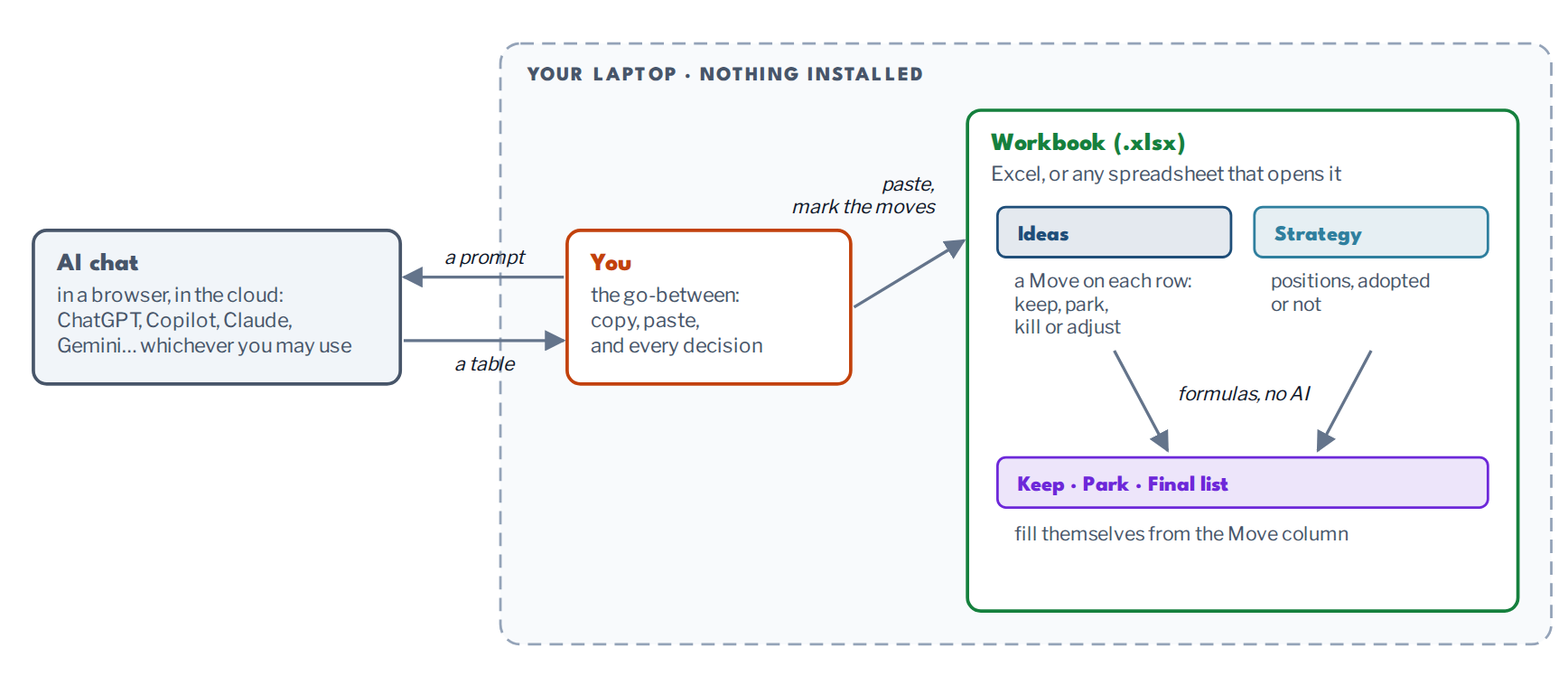
Nothing is connected: the chat sees only what you paste into it, and the workbook never leaves your laptop. Enough to build your own in any spreadsheet:
- IdeasOne row per item: # · Title · Description · Label 1–3 (small fixed sets of values: cost, distance, effort) · Move (a drop-down: keep, park, kill or adjust) · Decided by (the strategy position behind the move) · Note (what an item becomes, or what would bring it back).
- StrategyOne block per Playing to Win box. Three positions each: Position · Keep it when · Reject it when · Adopted? (yes, no or undecided). Only adopted positions count.
- Keep · ParkEvery row whose move is keep, or park: a filter on the Move column.
- Final listWhat survived: keep and adjust, with the note on each adjusted one.
The prompts, in order:
- Make the pile: a table of items with these columns.
- Propose strategy positions, one Playing to Win box at a time.
- First cut: keep or park each row against the adopted positions.
- The moves: keep, park, kill or adjust each one, with the reason.
The moves, as instructions
Each is a prompt to your assistant, or a filter, a sort or a bulk edit in Jira, Microsoft Project, Planner, Smartsheet or a spreadsheet.
Basic moves: the ones in the room
- 1 · Generate the pile
“List 40 places for tonight. Each gets a title, one sentence, and labels from small fixed sets: distance, type, cost, group size.”
- 2 · Set the strategy, box by box
“Propose positions for one Playing to Win box at a time, each with when I'd keep it and when I'd reject it. Build each box on what I kept above.”
- 3 · First cut
“Mark every item keep or park against my adopted positions. On each card: the position it serves, or what rules it out and what would bring it back.”
- 4 · Propose the moves
“There is room for four. For each item: keep, park, kill, or adjust it (one drink, not dinner; a dairy-free dessert). Give the reason from my strategy; I'll overrule any of them.”
- 5 · The final list
“Make the moves I agreed to. Nothing deleted: parked and killed stay findable, a changed card keeps its old title. Then list what survived.”
Advanced moves: for your own backlog
- 6 · Clear, assign, or kill
“For each kept item: do it now, give it an owner and a date, or kill it. There is no fourth option.”
- 7 · Make deferral cost something
“No deferral without a reason. The third deferral puts it on the reckoning list, louder, not quieter.”
- 8 · Prune whole trees
“Park the project, not its tasks. One gesture, reversible, and the children go with it.”
- 9 · Look back
“For each finished item: did it serve the position it was kept for? Does it still match the original card? Log what you learned against the strategy.”
- 10 · Check the dates
“Which dates have slipped, and how often? Which are no longer realistic? What did we drop to make a deadline, and did we decide to, or did it just fall off?”
Take it home (optional): the full setup
Hand the prompt below to an AI assistant that can run commands on your computer: Claude Code, Codex, Gemini CLI, Copilot agent mode, or similar. It sets up a free, open-source task board (Vikunja) on your own machine, connects your assistant to it, and walks you through a first board, a strategy to judge it by, and a triage. It tells you what it will install before it does, and asks first.
Allow about an hour, longer if you need to install Docker. Vikunja and vikunja-mcp are free and open source; the assistant is yours, so bring the one you already use. A chat-only assistant can't run it, but it can walk you through the steps by hand.
At a glance
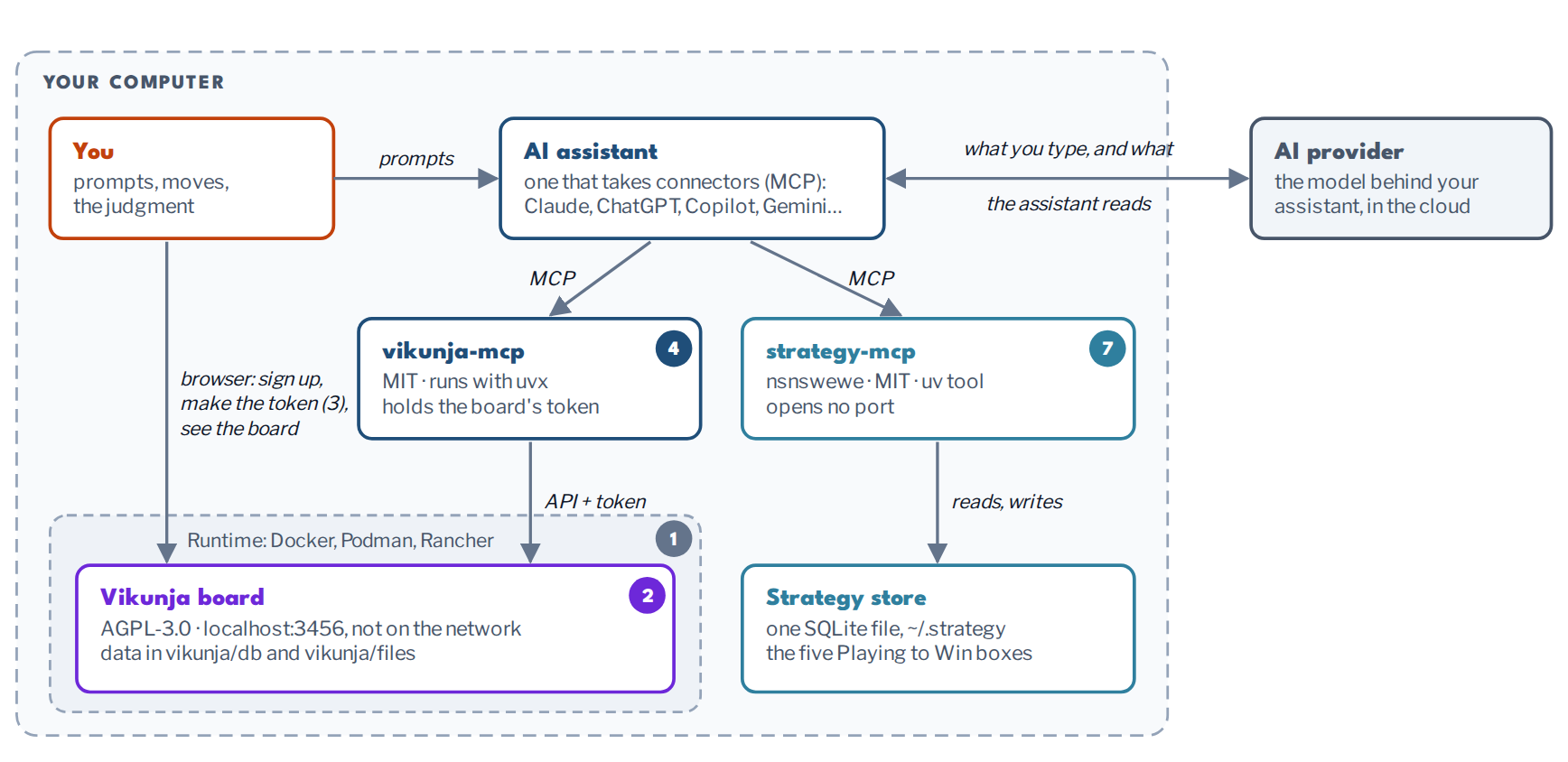
- 0 · Security firstBefore anything changes, the assistant tells you what will be installed, what it can reach, where the token lives, and how to remove it all. Then it waits for your go.
- 1 · Container runtimeDocker Desktop, Podman or Rancher Desktop (Docker Engine on Linux). Check port 3456 is free.
- 2 · VikunjaA vikunja folder in your home with db and files; the compose file below with a long random secret; docker compose up -d.
- 3 · Account and tokenIn the browser, at localhost:3456: register, then Settings → API Tokens. Leave out delete rights.
- 4 · Connect the assistantAdd vikunja-mcp (MIT) to its MCP config, with the full path to uvx. Back up the config file first.
- 5 · VerifyQuit the assistant fully, reopen, ask: “What projects do I have in Vikunja?”
- 6 · First boardA prompt with a count, what each item carries, and labels from small fixed sets. Hard limits go in the prompt.
- 7 · Strategy (optional)nsnswewe (MIT) as a second connector, beside any tracker: positions, adopted, and a triage against them.
- 8 · Plan the workTurn what survived into a project with columns and dependencies.
To remove it: revoke the token in Vikunja's settings, docker compose down --rmi all, delete the vikunja folder and the config entry, restart the assistant.
The board: docker-compose.yml
services:
  vikunja:
    image: vikunja/vikunja:2.2.0
    ports: ["127.0.0.1:3456:3456"]
    environment:
      VIKUNJA_SERVICE_PUBLICURL: http://localhost:3456
      VIKUNJA_SERVICE_JWTSECRET: <long random string>
      VIKUNJA_DATABASE_PATH: /db/vikunja.db
    volumes:
      - ./db:/db
      - ./files:/app/vikunja/files
    restart: unless-stopped
The board's connector, in your assistant's MCP config
"vikunja": {
  "command": "/full/path/to/uvx",
  "args": ["vikunja-mcp==0.10.3"],
  "env": {
    "VIKUNJA_URL": "http://localhost:3456",
    "VIKUNJA_TOKEN": "your-token"
  }
}
The strategy tool
uv tool install 'nsnswewe[mcp,web]==0.1.0'
strategy init
strategy web   # optional: the strategy as a page, on 127.0.0.1:8021
Its connector, beside your tracker's
"strategy": {
  "command": "/full/path/to/strategy-mcp"
}
Use the full path to uvx and to strategy-mcp: desktop apps don't see your PATH. Quit the assistant fully (not just the window), then reopen it. The strategy tool needs Python 3.12 or newer; uv fetches it for you, unless your machine blocks downloads.
Or have your assistant do all of it
Set up a local kanban board I can drive from my AI assistant. Work step by step, tell me
what you are about to do before you do it, and ask before you install anything. First
tell me which operating system you're on, and use that system's shell syntax
(PowerShell on Windows, zsh/bash on Mac and Linux). As you go, keep a file
INSTALLED.md in the vikunja folder: everything you create or change (folders, config
file and entries, every backup you make, tools, images) with versions, and the removal
steps in order. No secrets in it.

0. Security first. Before changing anything, read the steps below and tell me, in plain
   language, what this setup puts on my machine and what it can reach: each program and
   its licence, which ports it opens and to whom, where the API token is stored and what it
   can do, what (if anything) leaves my machine, and how to remove all of it afterwards.
   Include: that the token sits in plain text in the assistant's config file; that if I
   paste it into this chat it is also in the chat transcript; that whatever the assistant
   reads from the board goes to the AI provider like anything else I type; that the board
   restarts by itself whenever the container runtime starts (on Linux, Docker Engine starts
   at every boot); that on Linux the `docker` group is as good as root; and whether Docker
   Desktop's licence or admin rights apply to me. If I also want step 7, cover the strategy tool
   the same way. Flag anything that conflicts with a work laptop's policies. Then wait
   for my go.

1. Container runtime. Run `docker info --format '{{.ServerVersion}}'` (or
   `podman info`). If the command exists but can't reach the engine, it's installed but
   not running: tell me to start Docker Desktop (or `podman machine start`; the first time,
   `podman machine init`) and wait, then retry. Don't reinstall. On Linux, "permission
   denied" on /var/run/docker.sock means it is running but I'm not in the `docker` group:
   that step is mine (`sudo usermod -aG docker $USER`, log out and back in, restart you).
   If there is no runtime at all, stop and tell me my options: Docker Desktop (free for
   personal use and small companies, paid inside large ones; needs admin rights to
   install), Podman Desktop, or Rancher Desktop; on Linux, Docker Engine from Docker's own
   apt or dnf repository (docs.docker.com/engine/install). Don't assume Homebrew or
   winget. Let me install one, then continue. Also check `docker compose version`.

   Then check that port 3456 is free. If anything already answers on
   http://localhost:3456, stop and tell me, so we don't confuse it with the new board.

2. Vikunja. Vikunja is a free, open-source task board (AGPL-3.0). Make a folder called
   `vikunja` in my home directory (not in Documents or any cloud-synced folder), with `db`
   and `files` folders inside it. Generate a long random secret with a cryptographic
   generator (`openssl rand -base64 48` on Mac/Linux; .NET RandomNumberGenerator on
   Windows). Write this docker-compose.yml in that folder, as plain UTF-8 without a byte
   order mark, replacing CHANGE-ME with the secret:

   services:
     vikunja:
       image: vikunja/vikunja:2.2.0
       ports: ["127.0.0.1:3456:3456"]
       environment:
         VIKUNJA_SERVICE_PUBLICURL: http://localhost:3456
         VIKUNJA_SERVICE_JWTSECRET: CHANGE-ME
         VIKUNJA_DATABASE_PATH: /db/vikunja.db
       volumes:
         - ./db:/db
         - ./files:/app/vikunja/files
       restart: unless-stopped

   On Linux, if `id -u` isn't 1000, also add `user: "<my id -u>:<my login group id>"`
   under `image:` (the group from `getent passwd $USER`, not `id -g`). The image runs as
   user 1000 and otherwise can't write to my folders. With that line, a "mkdir /.cache:
   permission denied" in the logs is harmless.

   Run `docker compose up -d` (or `podman compose up -d`) in that folder. Wait until
   http://localhost:3456 answers. If the container exits, show me its logs. If they show a
   permission error on /db or the files folder, check that I own both folders and that the
   user: line matches me, then try again. Don't make the folders world-writable.

3. Account and token. These steps are mine, in the browser. Tell me to open
   http://localhost:3456, register an account, then go to Settings → API Tokens and create
   a token. Explain the choice: every permission lets the assistant delete as well as
   create; leaving out delete permissions is safer and enough to build boards. It still
   lets the assistant delete Kanban columns, but not the cards in them. Offer me the
   option of pasting the token straight into the config file myself instead of into this
   chat. If I do give it to you, never print it back.

4. Connect the assistant. vikunja-mcp is a free, open-source MCP server for Vikunja (MIT,
   github.com/ivantohelpyou/vikunja-mcp). It runs with uv. If uv is missing, ask me, then
   install it with the official installer from docs.astral.sh/uv, and tell me if my
   system's policy blocks it. Ask me which assistant I want to connect, and find its real
   MCP config file (for Claude Desktop: Settings → Developer → Edit Config shows it; for
   Claude Code, use `claude mcp add -s user`, which writes ~/.claude.json). If the file
   exists, back it up first, then merge this entry into its "mcpServers" object and keep
   everything else; if it doesn't exist, create {"mcpServers": {}} first. Never print the
   file's contents; it may hold other secrets. Make sure only I can read it, and any backup
   of it (they hold the token too).

   "vikunja": {
     "command": "<full path to uvx>",
     "args": ["vikunja-mcp==0.10.3"],
     "env": {
       "VIKUNJA_URL": "http://localhost:3456",
       "VIKUNJA_TOKEN": "<the token>"
     }
   }

   Use the FULL path to uvx (find it with `command -v uvx`, or `(Get-Command uvx).Source`
   on Windows; double the backslashes in JSON). Desktop apps don't see the shell's PATH,
   and a bare "uvx" fails silently. Check the result is valid JSON. Then run
   `uvx vikunja-mcp==0.10.3 --help` once, so the first launch doesn't time out downloading.

5. Verify. Tell me to fully quit the assistant, not just close its window (Mac: Cmd-Q;
   Windows: right-click the tray icon, Quit; Claude Code: /exit, then `claude --continue`
   to pick up this conversation), then reopen it and ask: "What projects do I
   have in Vikunja?" It should list the default Inbox project. If it doesn't, help me
   debug: is the container running, is the uvx path absolute and real, is the token right,
   is the config valid JSON. The assistant's MCP logs say which (for Claude Desktop:
   ~/Library/Logs/Claude on Mac, %APPDATA%\Claude\logs on Windows; for Claude Code,
   `claude mcp list` or `claude --debug`). Don't paste tokens from the logs.

6. First board: Sunday dinner, in my own kitchen. First ask me what foods I like and
   anything I don't, how many I cook for, and how much time I have on a Sunday; diets or
   allergies only if I want to say. Put the hard limits (an allergy, anything I won't
   eat) into the request itself, so nothing that breaks them gets made. What I feel like
   this week is not a limit: that belongs in step 7's strategy. Then suggest a first prompt that says how many items, what each item carries, and labels
   drawn from small fixed sets of values, for example: "Make a project called Sunday
   menus with 24 complete menus for Sunday dinner for <how many>, <diets or allergies>.
   Each menu is a starter, a main, a side and a dessert that go together. Title: a short
   name for the menu. Description: the four dishes, then one sentence on what the cook is
   in for. Labels: effort (easy / medium / hard), oven (no oven / one oven dish / two or
   more), timing (make-ahead / all on the day), diet (vegan / vegetarian / fish / meat).
   Then sort it into Kanban columns by effort." The dishes come from your memory, which
   is fine for recipes; tell me that. Build it through the vikunja tools, never through
   shell commands.

7. Optional: a strategy, next to the board. This step works with ANY tracker my
   assistant is connected to (Vikunja from the steps above, or Jira, Linear, Asana…),
   so offer it even if I skipped steps 1-5. nsnswewe is a free, open-source
   tool (MIT) that keeps a strategy on one page: positions in the five Playing to Win
   boxes, stored in a local SQLite file. Install it with uv:
   `uv tool install 'nsnswewe[mcp]==0.1.0'`. The package is nsnswewe; the commands
   it installs are `strategy` and `strategy-mcp`. Then run `strategy init` once.
   Add it to the same assistant config as a second server, using the FULL path to
   `strategy-mcp` (`command -v strategy-mcp`, or `(Get-Command strategy-mcp).Source`):

   "strategy": { "command": "<full path to strategy-mcp>" }

   After the restart, help me write three positions and adopt them. Positions are the
   situation, and they change: e.g. "Add to my strategy, box 2 where to play: fish this
   week, from the Saturday market. Then adopt it." Then show me the `triage` prompt it ships (in Claude Desktop:
   the + / attach menu; in Claude Code: the /mcp__strategy__triage command), or just
   ask: "Triage my Sunday menus project against my strategy." It keeps or parks each
   task, names the position that decided it, asks before changing anything, and never
   deletes. When I agree, mark each card with a label, keep or park, and leave every
   card in its column. Then add two Kanban views to the project, Keep and Park: the
   board's own columns in the same order, filtered to labels in keep && done = false
   (and park), each card in the column it sits in on the board. The board's own Kanban
   stays as it is.

8. Plan the cook. Suggest three menus to cook, one from each effort column (easy,
   medium, hard), from the Keep view if I did step 7; I can pick others, or more. Turn
   each into a meal plan: one project per menu, named
   "<date> · <menu name>", on Sundays in a row starting next Sunday. Ask me first what
   time food is on the table and whether I want leftovers for weekday lunches. Each
   project gets Kanban columns Shopping, Prep, Timings, Serving, and about ten tasks: one
   shopping task listing everything to buy, grouped by store section, quantities for my
   people (and the lunches), in the description; prep that can be done the day before or
   that morning; the cooking timeline working back from serving time, each title starting
   with the clock time ("4:30 PM · lamb into the oven"); and serving. Only the dishes on
   that menu.

   This is where the recipes have to be real. For each dish, look for its page in the
   Wikibooks Cookbook (https://en.wikibooks.org/wiki/Cookbook:<the name, spaces as
   underscores>, or search the cookbook for a close match; a few requests at a time, it
   refuses fast bursts). Read the page: many titles are ingredient pages, not recipes.
   Work the quantities and timings from the recipe, and put its link in the task. If a dish has no page, say so in
   the task ("no Wikibooks page: from memory, check before you cook") and never invent a
   link. If you can't reach the web, tell me, plan from memory, and flag every dish.
   Before building, tell me how many menus and tasks that comes to and which dishes have
   a page, and wait for my go. Build it through the vikunja tools.

When you're done, tell me how to stop the board (`docker compose down` in that folder),
where my data lives (the db and files folders), and how to remove everything, as
INSTALLED.md lists it: first I revoke the token in Vikunja's settings (only I can, in the
browser); then `docker compose down --rmi all`, the vikunja folder (that deletes the data,
and INSTALLED.md with it, so it goes last), the assistant config entry and any backups of
that file, and, if I want, uv and the container runtime themselves (on Linux, also leave
the `docker` group); last, restart the assistant so its servers stop. If I did step 7: `uv tool uninstall
nsnswewe`, the "strategy" config entry, and the ~/.strategy folder (my strategy's
data).
How did it go? Tell me: how far you got, your computer and assistant, and anything that broke or confused you.
Related
- PMI Puget Sound — Professional Development Days 2026
The event page, with the full programme and registration.
Bringing this to your event?
Tell me the date and who is in the room, and I will tell you whether it fits. I adapt it to the audience.
Useful in a first email: the date, the city, roughly how many people, and what they do all day.
Field notes
Monthly notes on AI-assisted development — what I'm shipping, what I'm learning, and which tools actually earn their place. It's also where the next talk and the next office hours get announced.
Talks · Reports · Survey of Software · ivantohelpyou.com
Model Citizen Developer · Ivan Schneider · ivan@ivantohelpyou.com